Install
A mod built on CAPIE needs three parts. When CAPIE does not load, one of them is usually missing:
| Part | What it is | Where it comes from |
|---|---|---|
| The mod you want | for example Rename Anything | Steam Workshop |
| CAPIE (mod) | a small switch mod with no game content; while it is enabled in the playset, CAPIE loads | Steam Workshop |
| CAPIE (program) | the native part: launcher, runtime DLLs and the optional proxy | installed once with a PowerShell setup script |
Subscribing to the mods does not install the program. Without it, a mod built on CAPIE runs only the parts that need no native code, and usually says that CAPIE is missing.
Before you start
- Windows 10 or 11. CAPIE runs only on Windows.
- Hearts of Iron IV 1.19.3.0 from Steam. The main menu shows the version in its bottom left
corner. CAPIE 1.5.0 supports only this build. On any other build the game starts without
CAPIE. Copies from other stores have a different
hoi4.exeand are not supported. - Windows PowerShell 5.1, which comes with Windows, or PowerShell 7. You do not need administrator rights.
- No local copy of the CAPIE mod in
Documents\Paradox Interactive\Hearts of Iron IV\modwith the same name as the Workshop item. When two mods have the same name, the game loads the local one and skips the Workshop one. - About 5 minutes.
Step 1: subscribe to the mods
- Subscribe to the mod you want to play.
- Subscribe to CAPIE.
- Wait until Steam has downloaded both (Steam, View, Downloads).
If you skip the Workshop CAPIE mod, the setup puts a local copy named "CAPIE (local copy)" in your mod folder. Use one or the other, never both.
Step 2: install the CAPIE program
The setup adds the CAPIE launcher to the Hearts of Iron IV launch options in Steam. Steam
keeps these options in localconfig.vdf and rewrites that file while it runs, so Steam must
be closed during this step. The setup can close Steam for you and start it again afterwards.
Way A: one PowerShell line (recommended)
- Press Win, type
PowerShelland open Windows PowerShell. "Run as administrator" is not needed. -
Paste this line and press Enter:
-
A menu opens. Choose Install or update and press Enter.
-
Answer the questions:
Question Answer Add the CAPIE launcher to the HOI4 Steam launch options? Enter (yes) Steam is running. Close Steam now so the launch option can be changed? Enter (yes) Start Steam again? Enter (yes) The Steam question appears only when Steam is running. With several Steam accounts on the computer, the menu changes all of them and lists them.
-
Wait for the Summary. "Installed" should name CAPIE 1.5.0 and "Steam" should say "started by Steam". If a step failed, the summary names the log file; see If it does not work.
The setup installs the newest signed release into %LOCALAPPDATA%\RenameAnything. With the
launcher method it does not touch the game folder. The folder name comes from the first mod
built on CAPIE and is the same for every mod.
What irm | iex does
It downloads the setup script from the latest CAPIE release on GitHub and runs it at once, with your user rights. Before installing anything, the script checks the release against a signed manifest and SHA-256 hashes. No one checks the script itself before it runs. If you want to read it first, use way B.
Way B: download the files yourself
- Open the latest CAPIE release and
download
CAPIE-1.5.0-win64.zipandinstall.ps1into one folder (for exampleDownloads\CAPIE). Do not unpack the ZIP. To check the downloads, compareGet-FileHash .\install.ps1withSHA256SUMS.txtfrom the same release. - Open that folder in File Explorer, click the address bar, type
powershelland press Enter. PowerShell opens in that folder. -
Run:
-
This way asks plain text questions. At "Add the selected loading method to the HOI4 Steam launch options? [y/N]", type
yand press Enter. Enter alone means no. If you have several Steam accounts, type the number of the account you play on, orAfor all. Answer the Steam questions as in way A.
The script checks the ZIP against the SHA-256 hash written into it before unpacking, then checks every file inside.
Step 3: enable the mods in your playset
- Start the game from Steam (Play). The Paradox Launcher opens.
- Open Playsets and enable your mod and CAPIE in the playset you play with. Their order does not matter.
- Close the Paradox Launcher.
The CAPIE mod is the on/off switch. The CAPIE launcher reads the playset the Paradox Launcher
saves (dlc_load.json) and loads CAPIE only when the CAPIE mod is enabled there. Disable the
mod and the next start is the plain game.
Step 4: start the game the right way
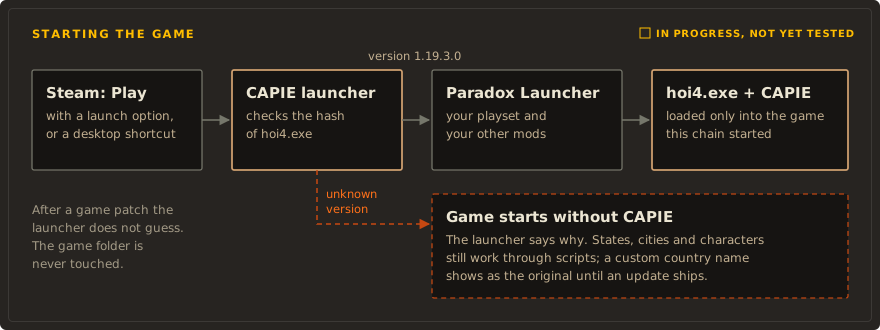
- Press Play in Steam. This runs the CAPIE launcher, which opens the Paradox Launcher as usual.
- In the Paradox Launcher, pick the playset with the CAPIE mod and press Play.
- Wait in the main menu for about 20 seconds. CAPIE loads once the main menu is ready, never earlier.
These starts do not load CAPIE
- Pressing Play in a Paradox Launcher that was already open before you pressed Play in Steam. Close the Paradox Launcher completely first.
- The game's own desktop shortcut, a shortcut to
dowser.exeorhoi4.exe, or starting the game from the Paradox Launcher's library.
Step 5: check that CAPIE is running
- In the main menu, the CAPIE mark appears while the CAPIE mod is enabled. The mark comes from the mod, so it shows only that the switch is on, even when CAPIE failed to load.
- Open
%LOCALAPPDATA%\RenameAnything\launcher.log. The lineCAPIE loaded into pid=...from the last start means CAPIE runs. - Mods built on CAPIE usually show their own status. Rename Anything, for example, shows "CAPIE 1.5 loaded" in its name editor.
If it does not work
First: read the launcher log
The CAPIE launcher writes every decision to %LOCALAPPDATA%\RenameAnything\launcher.log. Press
Win+R, paste %LOCALAPPDATA%\RenameAnything, press Enter and open launcher.log.
Read the lines from the last start:
| Line in the log | Meaning | What to do |
|---|---|---|
no new lines, or no launcher.log |
the game was not started through the CAPIE launcher | check the Steam launch option (below) and start with Play in Steam |
playset disabled: CAPIE mod not enabled in the playset |
the CAPIE mod was off in the playset you started | enable the CAPIE mod (step 3) |
playset unknown: ... |
dlc_load.json could not be read |
start once from the Paradox Launcher with your playset, then try again |
game ... sha256=... (unknown build) |
your game is not 1.19.3.0 from Steam | see Wrong game version |
bundle check failed: ... |
CAPIE files are damaged or changed, often by an antivirus | run the setup again and choose Install or update |
no game appeared in the started tree in time |
the game was started by another, already open Paradox Launcher | close the Paradox Launcher, then press Play in Steam |
CAPIE loaded into pid=... |
CAPIE is running | if your mod still says it is missing, wait 20 seconds in the main menu and look again |
A mod says CAPIE is missing although the CAPIE mod is enabled
Work through these in order and test after each one:
- Check the Steam launch option: Steam, Library, right-click Hearts of Iron IV, Properties,
General, Launch Options. It must contain
"...\RenameAnything\current\RenameAnythingLauncher.exe" %command%. If it is empty, the setup could not change it, usually because Steam was running. Close Steam completely (Steam menu, Exit, not the window's X), run the setup again, choose Install or update, and answer yes to the Steam questions. - With several Steam accounts: each account has its own launch options. Way A changes all of
them. With way B, run it again and pick the account you play on, or
A. - Close every Paradox Launcher window, including the one in the tray next to the clock, then press Play in Steam.
- Wait 20 seconds in the main menu before you load a game.
- Look for a local copy of the mod or of CAPIE in
Documents\Paradox Interactive\Hearts of Iron IV\mod, and remove it or rename it in itsdescriptor.mod. - Check your antivirus. Some antivirus programs block or quarantine CAPIE, because it loads
code into the game. Look in the antivirus history for
RenameAnythingLauncher.exe,capie_core.dll,capie_editor.dllorcapie_injector.exe. Restore them, add%LOCALAPPDATA%\RenameAnythingas an exception, and run the setup again. - If none of this helps, use the proxy method.
The setup does not offer to change the launch options
- The Steam step needs a Steam installation the setup can find. It reads the Steam folder from
the registry. If that fails, run way B with
-SteamRoot "D:\Path\To\Steam". - If you answered no, or Steam did not exit within 60 seconds, the step was skipped. The setup
asks Steam to exit with
steam.exe -shutdownand never kills it. Close Steam yourself (Steam menu, Exit) and run the setup again. - You can also set it by hand. In Launch Options, type the full path of
RenameAnythingLauncher.exein%LOCALAPPDATA%\RenameAnything\current, in quotes, followed by%command%.
The setup keeps your own launch options. It makes a byte-exact backup of localconfig.vdf
first and restores it if the result differs from what it expected:
| Before | After |
|---|---|
| (empty) | "…\RenameAnything\current\RenameAnythingLauncher.exe" %command% |
-debug_mode |
"…\RenameAnythingLauncher.exe" %command% -debug_mode |
"C:\other.exe" %command% -x |
"C:\other.exe" "…\RenameAnythingLauncher.exe" %command% -x (the log notes the other wrapper) |
PowerShell errors
- "Running scripts is disabled on this system" means you ran
.\install.ps1directly. Use thepowershell -ExecutionPolicy Bypass -File .\install.ps1 ...line from way B, or way A. - If Windows blocks the downloaded file, run
Unblock-File .\install.ps1in the same folder and try again. - "irm is not recognized" means you are in the old Command Prompt (
cmd), not PowerShell. Open Windows PowerShell as in step 2. - A failed signature or hash check means the download was incomplete or changed. Delete the files, download them again, and do not mix files from different releases.
Wrong game version
CAPIE 1.5.0 works only with Hearts of Iron IV 1.19.3.0 from Steam. On any other build,
including a beta branch, the game starts without CAPIE and shows a short notice. In Steam,
open Properties, Betas, and choose "None". A yellow "not supported" warning in the Paradox
Launcher's mod list only compares a mod's supported_version with your game and blocks
nothing; CAPIE goes by the hoi4.exe build, which the main menu shows. See
Game updates for what happens after a patch.
Proxy method
If the launcher method does not work for you, a version.dll next to hoi4.exe can load
CAPIE instead. This method adds one file to the game folder and ignores the CAPIE mod switch.
With the activation below it needs no Steam launch option, and CAPIE loads in every game you
start while it is installed.
- Run the setup once more and choose Uninstall, so the two methods do not overlap.
-
Download the release files as in way B and run, in that folder:
-
Start the game any way you like. The proxy writes its log to
%LOCALAPPDATA%\RenameAnything\proxy.log.
If the setup cannot write to the game folder, run PowerShell as administrator for this step.
The setup never replaces a version.dll it did not install. If another mod or tool already
has one there, this method cannot be used.
To switch it off, delete %LOCALAPPDATA%\RenameAnything\proxy.enabled, or uninstall.
Without -ProxyActivation Config the proxy loads CAPIE only when the game gets the -capie
argument, and the setup can add that argument to the Steam launch options. Shortcuts work only
with the launcher method.
Still stuck
Open an issue on GitHub and include:
- your game version from the main menu,
- what the Steam launch options contain,
launcher.log, andbootstrap.logfrom the same folder if the setup failed.
The logs contain paths and process ids, never names you typed.
Multiplayer
With CAPIE loaded the game is not declared multiplayer compatible. CAPIE has not been tested in multiplayer. Before you play multiplayer, disable the CAPIE mod in your playset, or run the setup and choose Disable. Disable removes CAPIE from the Steam launch options and keeps the files. See Multiplayer.
Updates
CAPIE never checks for updates in the background. To update, run the one-line command again
and choose Install or update. The setup accepts a release only when its manifest carries
the signature of the key built into the script, its tag matches the manifest, and every file
matches the SHA-256 in the manifest. If you already have the newest version, it repairs the
installation instead. Steam points at the current folder link, so an update does not change
the launch options again.
With the downloaded script from way B:
.\install.ps1 -CheckUpdate   # one request: newest version, and whether it supports your hoi4.exe
.\install.ps1 -Update        # install, or update to the newest signed release
.\install.ps1 -ListVersions  # one request: the signed releases with API level, game version and changes
.\install.ps1 -Version 1.5.0 # install a specific signed release; -Update returns to the newest
.\install.ps1 -Rollback      # switch back to the previous version, kept on disk
In the menu, Install an older version does the same as -Version. Add -DryRun to any
command to see what it would do without writing anything.
Uninstall
- Run the one-line command and choose Uninstall. It removes CAPIE, its shortcuts and the
local CAPIE switch mod, and puts your Steam launch options back as they were. Nothing in
the game folder needs repairing. With the proxy method it removes only its own
version.dll. The setup logbootstrap.logstays, unless you also answer yes to deleting the log and the Steam config backups. - Unsubscribe from the CAPIE mod on the Workshop if you no longer need it.
With the downloaded script, the same is .\install.ps1 -Uninstall, and -Uninstall -Purge
also deletes the log and the backups.
What a mod built on CAPIE stored in your saves stays there. How a save looks without CAPIE depends on that mod. Try it on a copy first.